Install Guide
How to Install Verity on Minecraft Bedrock
Last updated: July 14, 2026
Installing the Verity mod on Minecraft Bedrock takes about five minutes:
- Download the
.mcaddonfile from the official page. - Open it from your browser's downloads — Minecraft imports the packs automatically.
- Enable the Beta APIs experiment on a new world.
- Activate the Verity behavior pack for that world.
- Start the world — Verity is in there with you.
Tested on: iPhone (iOS) · Minecraft Bedrock v1.26.33 · ThatMob's Verity 2.1.0 (V26.30) by PnTMC · July 14, 2026. Every screenshot below is from that run.
Before you start: what you need
- Minecraft Bedrock Edition on a current version — the add-ons target 1.26.30 or newer (this guide was tested on 1.26.33). Works on mobile, Windows, and console.
- The Verity add-on from its official page: Verity — Bedrock Edition (PnTMC) or Verity BE (Undertaletalelover). Not sure which? See the comparison.
- A world you don't mind flagging as experimental — Beta APIs marks the world, so consider a copy of your main world or a fresh one. (Also: this is a horror mod. It will, eventually, try to scare you.)
Step-by-step installation
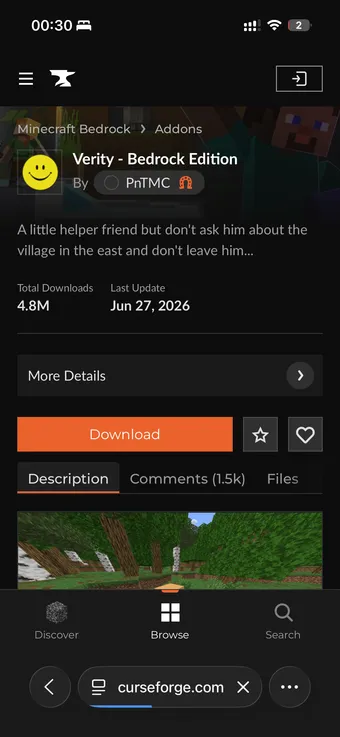
Step 1 — Open the official download page
In your phone's browser, open Verity — Bedrock Edition (PnTMC) or Verity BE (Undertaletalelover) on CurseForge. The screenshots below are from the PnTMC build, but the install steps are the same either way — just avoid copycat uploads outside these two official pages.
Step 2 — Download the .mcaddon file
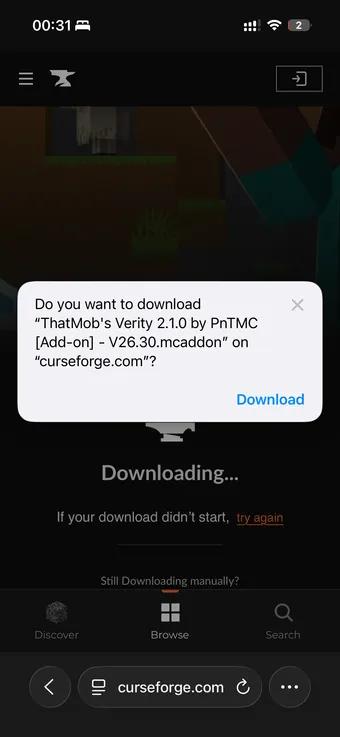
Tap Download and confirm the browser prompt. The file is around 37 MB and
carries the mod version in its name — ThatMob's Verity 2.1.0 … .mcaddon.
Step 3 — Open the downloaded file
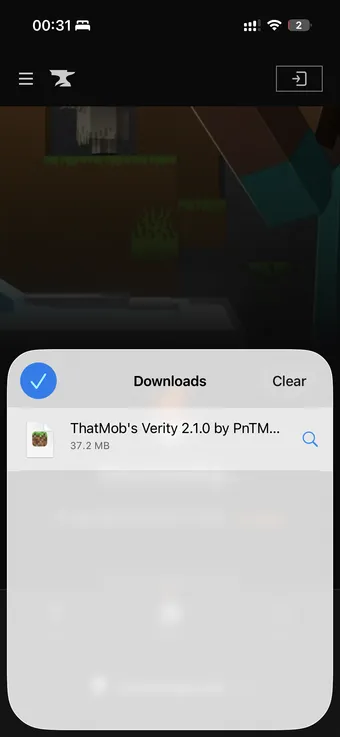
Open your browser's downloads list (on iOS: the arrow icon in Safari, or the Files app → Downloads) and tap the Verity file. If your phone asks which app should open it, choose Minecraft.
Step 4 — Let Minecraft import the packs
Minecraft launches on its own and shows Import started… at the top of the main menu, followed a few seconds later by the confirmation.
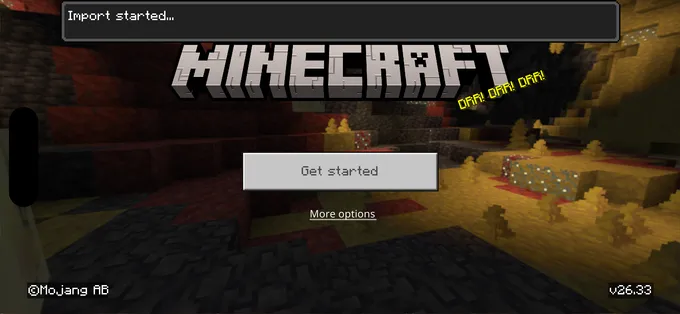
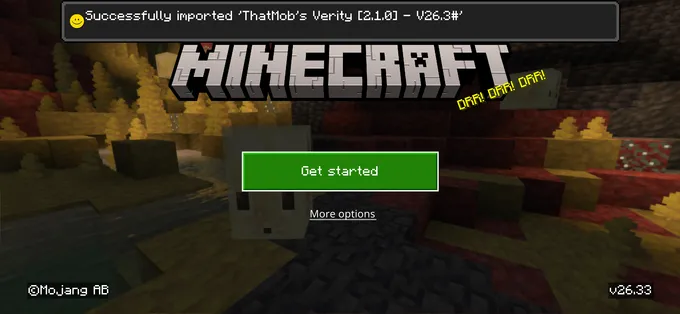
If nothing happens or the import fails, re-download the file — partial downloads are the usual culprit on mobile.
Step 5 — Create a new world
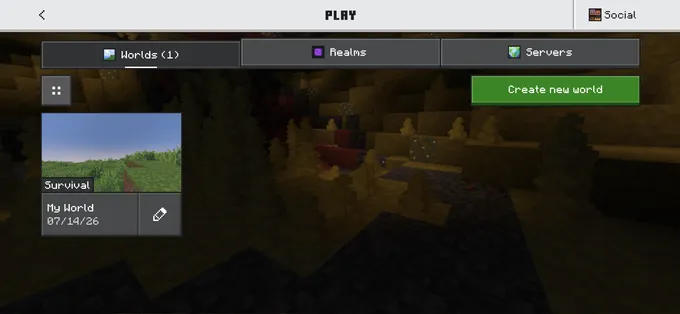
From the main menu: Play → Create new world. A fresh world is the intended way to experience Verity's story from day one.
Step 6 — Enable Beta APIs
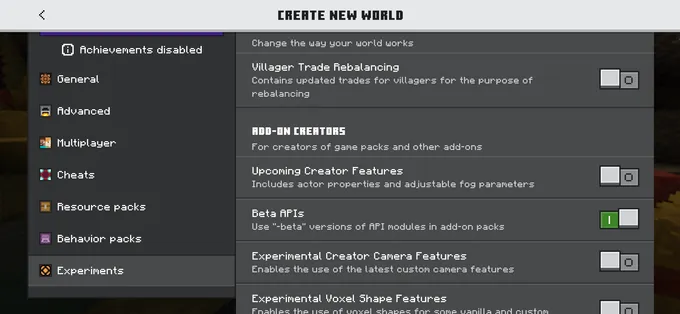
In the world settings, scroll the left sidebar to Experiments and toggle Beta APIs on. This is the step people miss — skipping it is the single most common reason Verity never appears.
Step 7 — Activate the Verity behavior pack
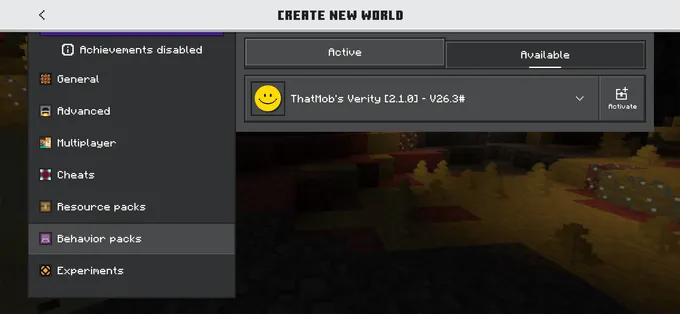
Still in world settings, open Behavior Packs → Available, find ThatMob's Verity, and tap Activate. The matching resource pack activates alongside it (accept the prompt if one appears).
Step 8 — Start the world and meet Verity
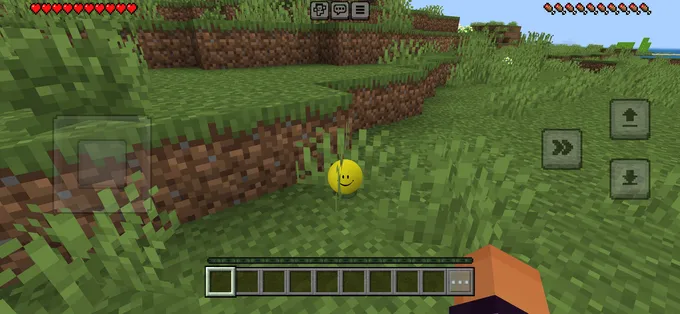
Create the world and play. Verity spawns nearby — a small yellow smiley orb waiting in the
grass — and you can talk to it any time by opening chat and typing
Hey Verity. Enjoy the friendly phase while it lasts; what follows is covered
(with spoilers) in the lore guide.
How to enable Beta APIs (all platforms)
Beta APIs is an experiment toggle that lets add-ons run script code, which Verity needs for its dialogue and phase system:
- iOS / Android: Create or edit a world → sidebar → Experiments → toggle Beta APIs → confirm the warning.
- Windows: same path via Settings when creating or editing the world.
- Console: the Experiments section appears in world settings; if it's missing, update Minecraft to the current version first.
Turning on an experiment permanently marks that world as experimental — achievements behave differently and old versions can't open it. Use a copy or a fresh world if that matters to you.
Troubleshooting
Verity won't spawn
Check, in order: Beta APIs is on for this world; the behavior pack (not just the
resource pack) is active; your Bedrock version matches the add-on's requirement; and you
typed Hey Verity in chat, not a command.
"Hey Verity" does nothing
Type the phrase exactly, without a slash. If it still fails, the behavior pack version probably doesn't match your game version — re-download the latest file from the official page.
The import fails or nothing happens when opening the file
Re-download Verity from the official page (partial downloads are common on mobile). On
Android, if the file saved as .zip, rename it to .mcaddon and
open it again.
Removing Verity (and playing with friends)
Done being haunted? Removing the Verity mod is as simple as installing it: open the world's settings, deactivate the Verity behavior pack and resource pack, and the entity is gone. To purge the files from your device entirely, delete the packs under Settings → Storage. Keeping a dedicated test world makes this even cleaner — when the story ends, the world can simply be deleted.
Playing with friends is easy too: Bedrock packs apply per world, so anyone who joins your world meets Verity without installing anything themselves. If you host on a Realm, upload the world with the packs already active, and check the add-on's official page for any Realm-specific notes before your session.
Playing on Java instead? Follow the Verity JE install guide. And if you're still deciding, compare all three versions here.